
 By Admin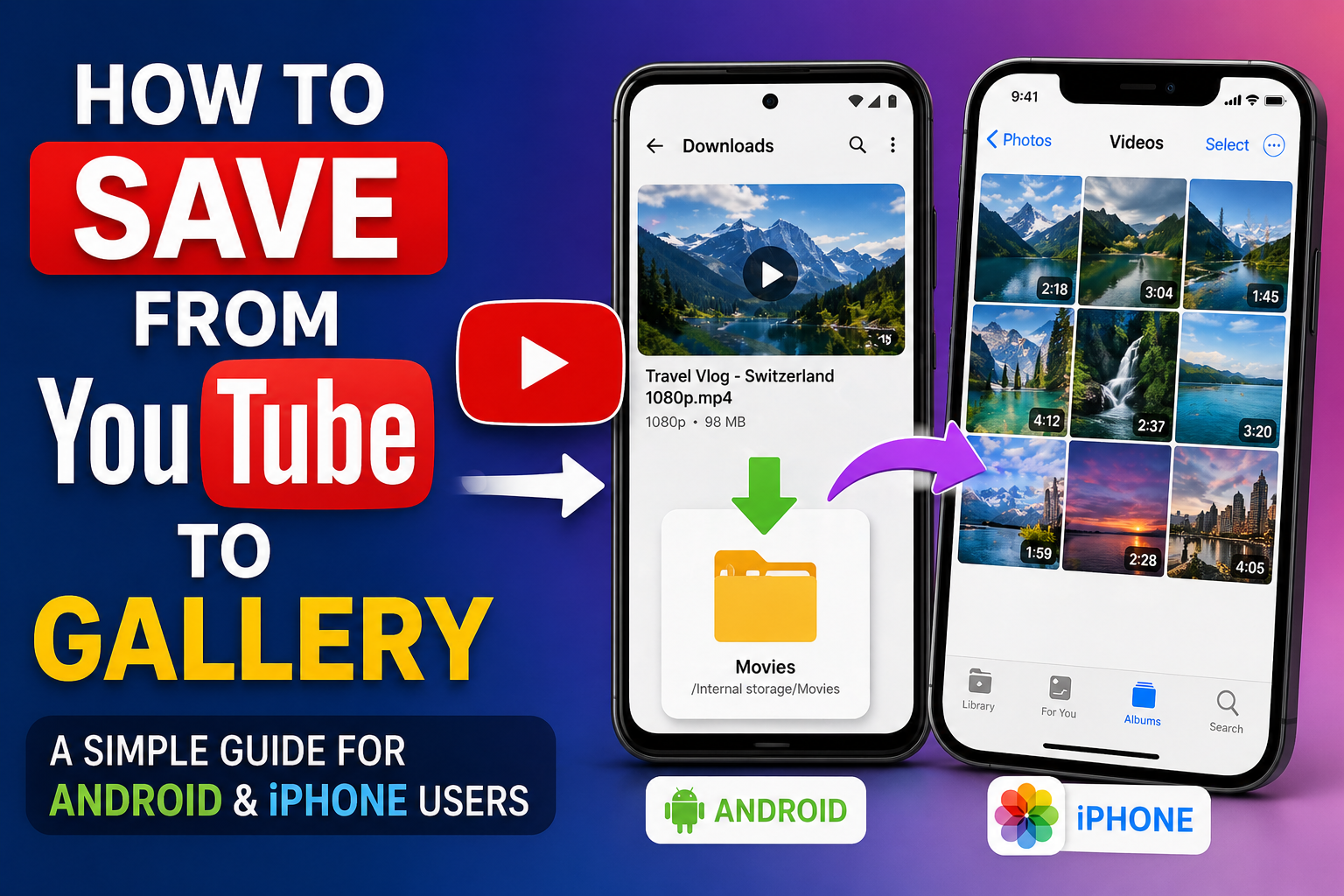
Mobile users interact with their video content differently from desktop users. On a phone or tablet, the gallery or photos app serves as the central hub for all media, and having downloaded videos appear there alongside personal recordings and photos makes them far more accessible. Locating a video in a separate downloads folder requires navigating through file management apps, which many users find less intuitive than simply scrolling through their gallery. Getting downloaded YouTube content to appear directly in the gallery streamlines the viewing experience significantly for everyday mobile use.
The ability to save from youtube to gallery on a mobile device has become one of the most frequently searched downloading-related questions among smartphone users. The process is straightforward once you understand the steps specific to your device’s operating system, but the difference between simply downloading a video and having it properly appear in your gallery involves a few additional steps that many guides overlook. Understanding those steps from the beginning prevents confusion and ensures your downloads end up exactly where you want them.
Saving YouTube Videos to Gallery on Android
Android devices offer the most flexible path for getting downloaded videos into the gallery. When you download a video through a browser-based tool on your Android device, the file is saved to your Downloads folder by default. To move it into your gallery, you need to transfer the file to your device’s Pictures or Movies folder, both of which are typically scanned by your gallery app automatically. This can be done through your device’s built-in file manager app by selecting the downloaded file and choosing the move or copy option.
Some Android devices and gallery apps will pick up videos from the Downloads folder automatically and display them in a separate album without requiring you to move the file manually. If your gallery app does not show a Downloads album, the manual transfer approach is the most reliable solution. After moving the file, your gallery app may need a moment to index the new content. Refreshing the gallery app or restarting it usually triggers the indexing process and causes the newly transferred video to appear in your media collection within a few seconds.
Saving YouTube Videos to Gallery on iPhone
iPhones handle video saving through a more structured system than Android, which requires a slightly different approach. When you download a video through your browser on an iPhone, the file is saved to the Files app by default. To get it into your Photos app, which serves as the gallery on iOS devices, you need to take an additional step. Open the Files app, locate your downloaded video, tap and hold it to bring up the options menu, and select the option to save the video to Photos. This transfers a copy of the file into your Photos library where it appears alongside your camera roll.
The process preserves the original file in your Files app while placing an accessible copy in Photos, which means you end up with two copies of the video using double the storage. If storage space is a concern, you can delete the original from the Files app after confirming that the copy in Photos plays correctly. iPhones with limited built-in storage may find this doubling effect problematic for longer or higher resolution videos, making it worth considering storage management as a regular habit when downloading videos frequently on an iOS device.
Managing Downloaded Videos on Mobile Devices
Keeping your gallery organized after downloading videos from YouTube requires a little attention to prevent it from becoming a disorganized collection of files. Most gallery apps allow you to create albums and move videos between them, which provides a simple way to keep downloaded content separate from personal recordings if you prefer that distinction. Naming albums descriptively, such as by topic or creator, makes it easy to locate specific videos when your collection grows beyond a handful of files.
Regularly reviewing your downloaded videos and deleting content you no longer need frees up storage space and keeps your gallery manageable. Videos that you downloaded for a specific purpose and have already watched or used are prime candidates for deletion. Mobile storage fills up surprisingly quickly when videos are involved, and being selective about what you keep long-term versus what you watch once and remove is a practical approach that keeps your device running well and your gallery easy to navigate without scrolling through dozens of files you no longer need.